
Last month, Steve – one of our loyal clients asked me for help with a really strange issue.
Two of his sites Hotshots and Scope had the code mixed.
Many elements of his Scope site have been changed to look like his Hotshots site: header image, navigation menu color, buttons color, page layouts, etc. although he didn’t change the theme of Scope site.
After reviewing everything, I saw that the issue happened because he had used the same TheEra theme for both sites.
When two or more people edited the code of the theme at the same time, Weebly would record the last edit. So, although he didn’t change the code of Scope site, this site has taken the code from Hotshots site, resulting in a lot of changes.
Unfortunately, he didn’t back up the theme of Scope so we had to customize the theme from scratch, which took a lot of time and money.
Above is just an example as to why you should back-up your Weebly themes.
If you don’t want to waste your time and money, then back up your theme. Below are some more cases for reference:
- If you’re about to customize your theme files or HTML/CSS code of your theme that you aren’t sure about >>> BACK UP YOUR THEME.
- If you’re about to update your theme to the next version >>> BACK UP YOUR THEME.
- If you’re about to use a theme for multiple sites >>> BACK UP YOUR THEME.
SO HOW CAN I BACK UP MY THEME?
It’s pretty easy, just follow 3 steps below:
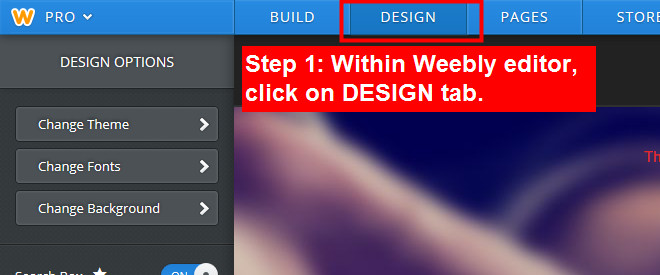
Step 1: Within Weebly editor, click on DESIGN tab.
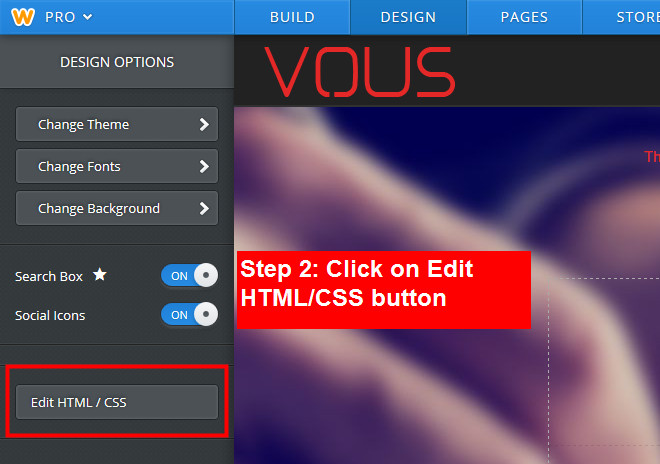
Step 2: Click on Edit HTML/CSS button
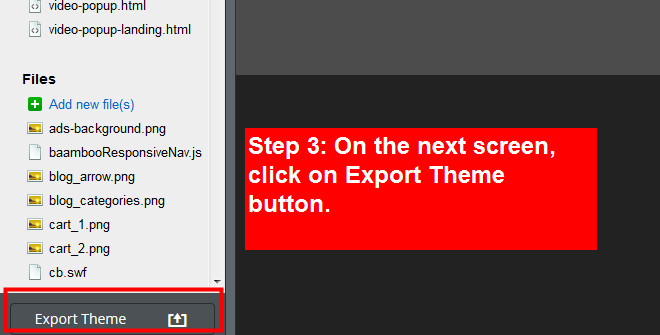
Step 3: On the next screen, click on Export Theme button.
After exporting, you’ll get a theme.zip file. E.g. VOUS.zip
Please rename that file to the name of the site you exported.
E.g. If you export from Scope site then you should rename the zip file to “Scope”.
You should export themes from each site, rename them then re-import to each site to avoid the problem of using the same theme for various sites.
If I’m going to update my theme using a new version, what should I do?
Firstly, you should back up your theme using the method above.
Don’t forget to rename the theme file after you export. You can add the version number beside the theme name such as VOUS 1.0
You also need to back up the following things:
- Header images
- Background images
- Images for Nivo slider, Flex slider, fullscreen slideshow, etc. if you’re using one of them.
Taking an extra few minute to back up your theme can help you save a lot of time, money and headache.
If you see we’ve missed something, please let us know in the comment section below. If you’ve met problem because you didn’t back up your theme, share with us so we can avoid those cases.
0 Comments